Client records for astrologers
One register for everyone you read for, with their birth details, what they asked, what you told them, the remedies you gave and the date to call back. The records are saved on your own device, not on our server.
Included in every plan. No card needed. Sign in with Google to start.
Who needs this
An astrologer who sees the same families year after year needs more than a list of charts. A client comes back after eight months and asks about the job you discussed. The client file shows that last sitting first, so you can start from where you stopped.
It suits a practice run from a diary, a notebook or a spreadsheet. Bring the spreadsheet in as a CSV file, then keep every sitting, note and follow-up in one place, next to the chart it belongs to.
What you can do with it
Find anyone fast
- Search by name, phone, place or folder. Press Enter and the first match opens.
- Recent shows the clients you opened lately, with a small arrow that opens the kundli straight away.
- File people in folders such as Client, Family, Friends and Practice, or make your own.
- Tick rows to open several kundlis in tabs, move them to a folder, export them, make reports or compare them.
- A banner points out possible duplicates, by name and birth date or by the same birth details. Merge them, and sittings and notes move to the record you keep.
- After a delete, Undo appears and puts the client back with their records.
Call back at the right time
- Follow-up dates and sittings booked in the next days come into one list, with late ones marked by how many days.
- Add chart events to see each client whose Mahadasha or Antardasha changes in the next 30 days.
- The same list shows a client whose Sade Sati begins within a year.
- Switch on a new Varshphal year or a tithi birthday in the next 7 days, if your clients keep them.
- Mark a follow-up done, or move it one week later, from the list itself.
The client file
- The last sitting sits on top, with what they asked, the advice given, the remedies given and the next date.
- Sittings, your notes, kundli notes and reports handed over share one timeline.
- Saved in other sections gathers their matches, muhurtas, Prashna questions, AI readings, Vastu projects, Tarot and Numerology reports and naming plans.
- Link family members as spouse, child, parent or sibling. Then compare charts, match a couple or name a child in one click, where your plan has those tools.
- Keep a photo, phone, email, address, tags and how the client found you. Phone and email stay hidden on screen until you click to show them.
Sittings and appointments
- Note the date, time, length and how it was held, in person, by phone, by video call or by messages.
- Three boxes for what they asked, your advice and the remedies, one remedy on each line.
- A sitting with a date ahead counts as booked, so your appointments and your sittings live in one register.
- Filter by booked ahead or follow-up pending, or by client.
- Search every question, piece of advice, remedy and client note. Search a planet or a mantra to find what you gave before.
- Ready remedies follow the Remedies section for that chart. Keep your own under My ready remedies, in your own words.
- A client marked Jain is offered the Jain path, with the Navkar, samayik, tapasya and daan, in place of stones and graha worship.
- Note a fee and a paid mark if you wish. A fee column and a Not paid filter appear only when you do.
Reports you hand over
- Three editions of the kundli report: Summary, Standard and Full.
- My layout saves your own order of kundli pages, to use again.
- The advice and remedies of the chosen sitting print near the end. With no sitting, the report keeps ruled lines for your own words.
- A remedies sheet puts one sitting's remedies on one page. Copy as text sends the same words to WhatsApp or mail by paste.
- Your name, logo and contact details print on the report, and its colours can be read from your logo.
- Save PDF or Print, and the client file keeps a record of the report you made.
- Compare two to four kundlis side by side, with a planet lit in all of them when you point at it.
Bring your data in, take it out
- Import a CSV file saved from Excel or Google Sheets. You match its columns to client fields before anything is added.
- Each row is checked for a readable date, time and place, and clients already saved can be skipped. A blank template is there to download.
- Add birth details from one or many .jhd chart files. These files hold no gender, so check that after importing.
- Export the client list as a CSV file. The Excel form keeps Hindi names correct.
- Back up everything to one file and restore it, with a reminder on the Clients page if a backup is due.
See it in the tool
Real screens from the tool, made with sample charts. Select a screen to see it larger.
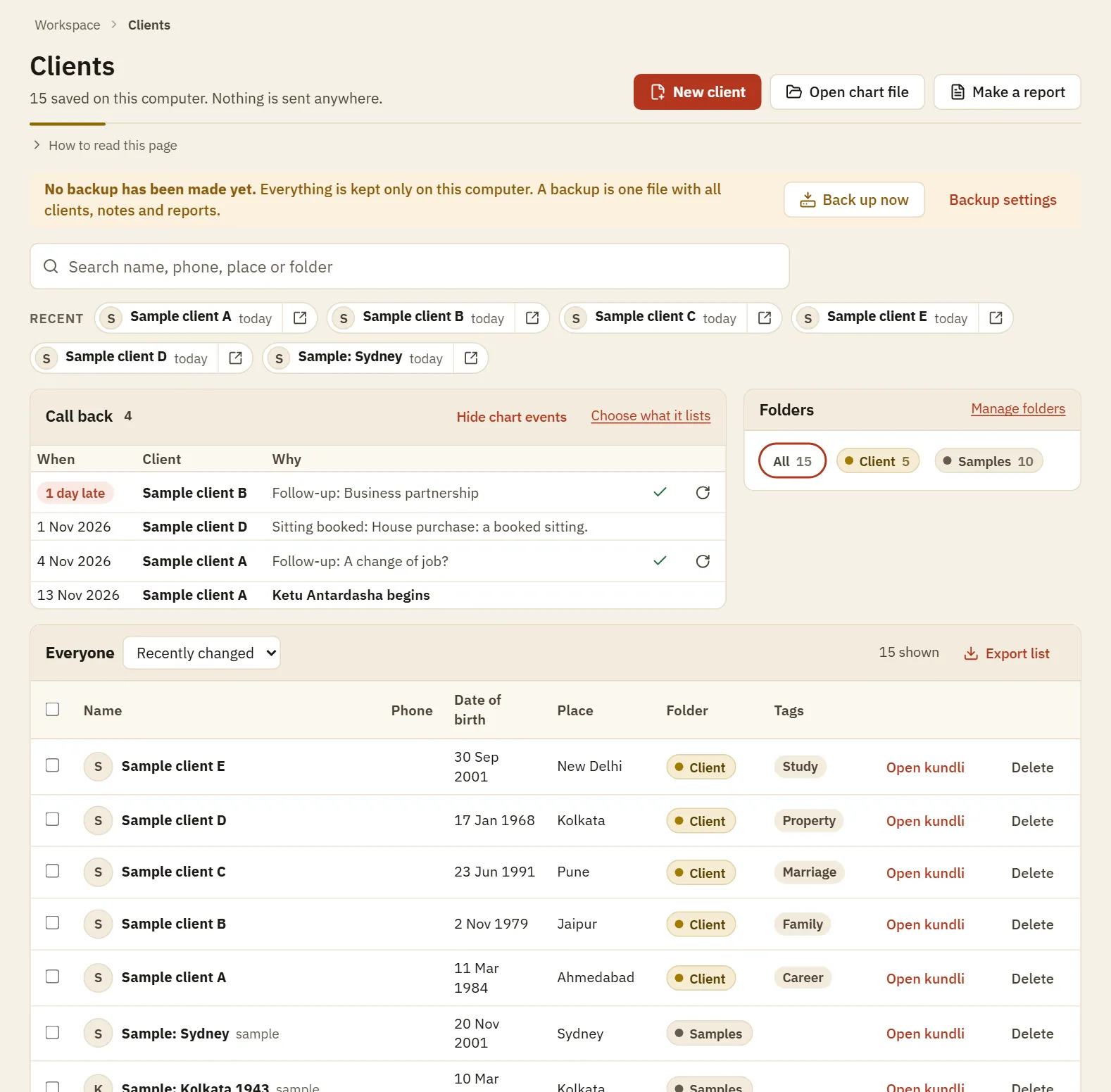
The Clients page
Search comes first, then recent clients, the call back list and your folders. Start the day with the call back list.
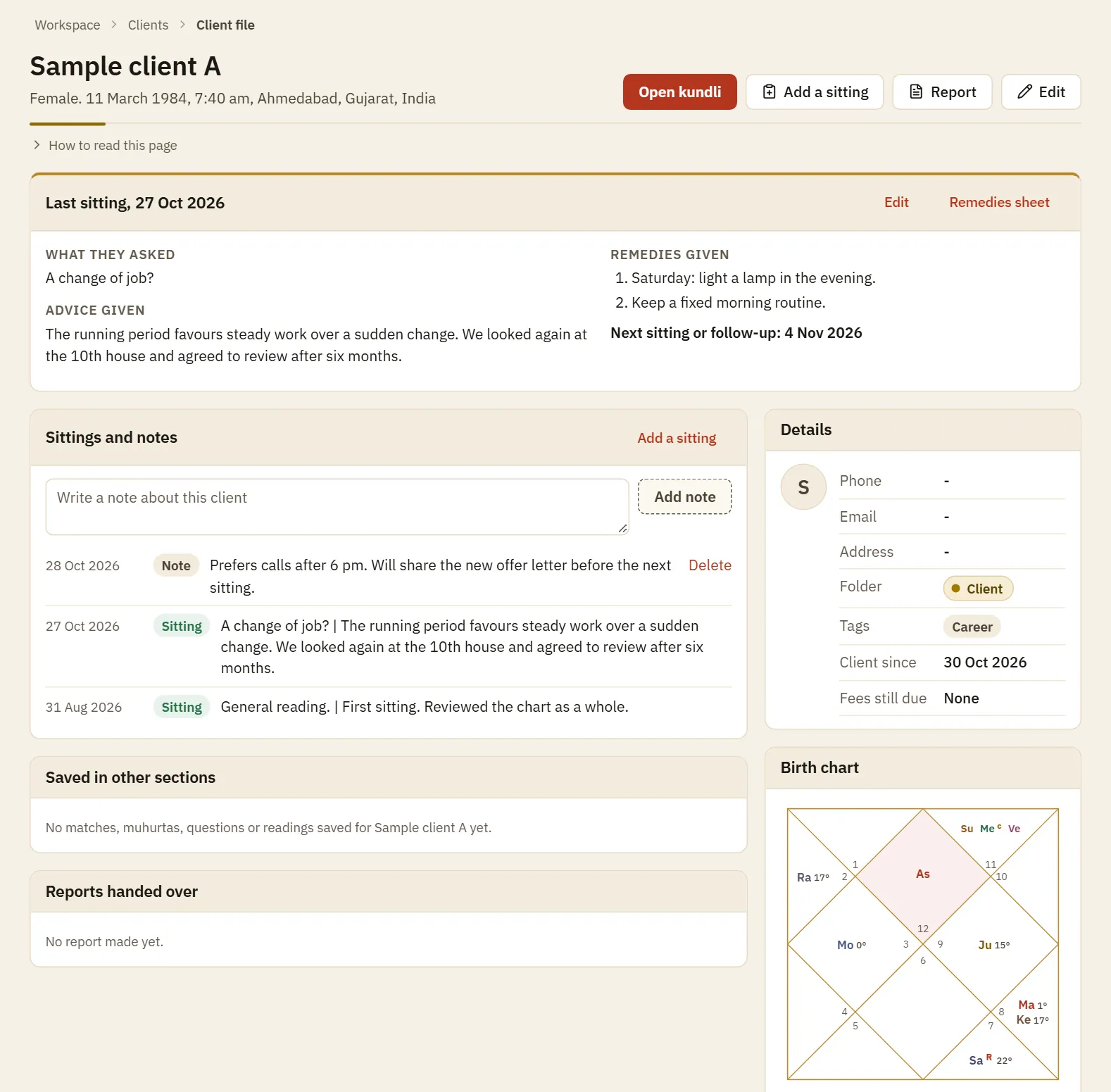
A client file
What you told this person last time sits on top, with sittings and notes below and the details and chart on the right.
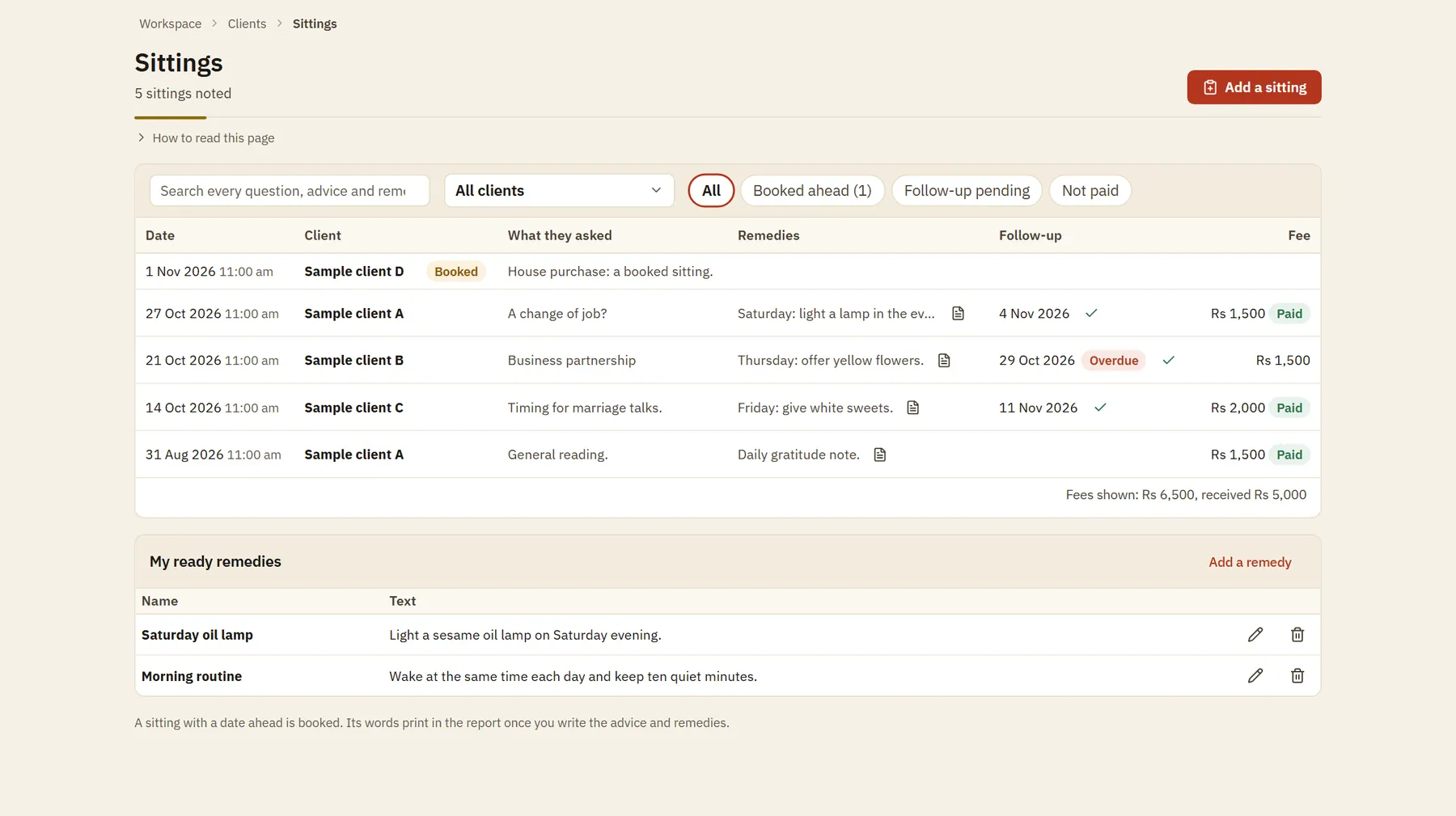
The register of sittings
Every sitting in one list, with booked sittings, follow-ups and fees marked. Search reaches every word you wrote.
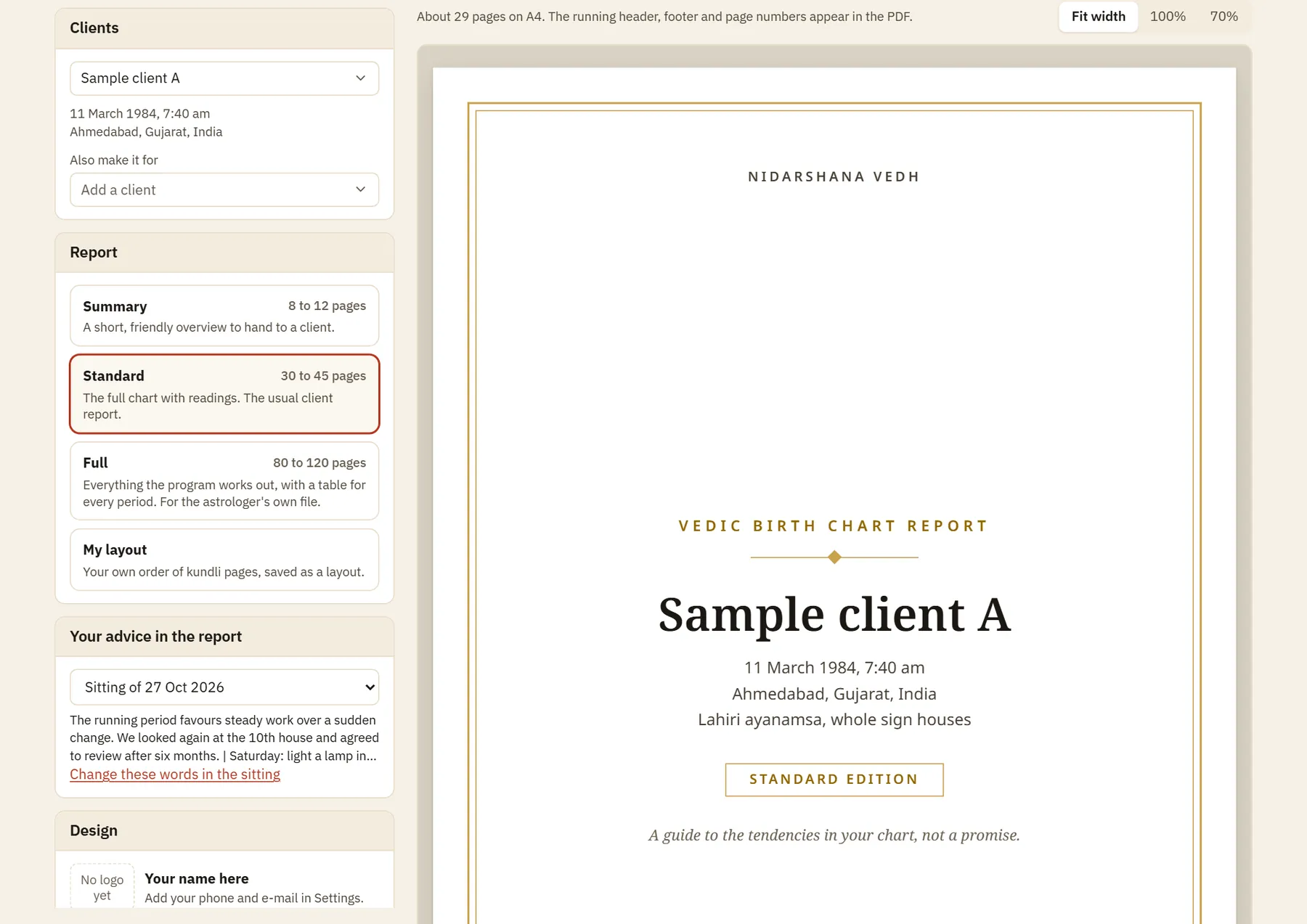
Making a report
Choose the client, the edition and the advice on the left. The right side shows the paper as it will print.
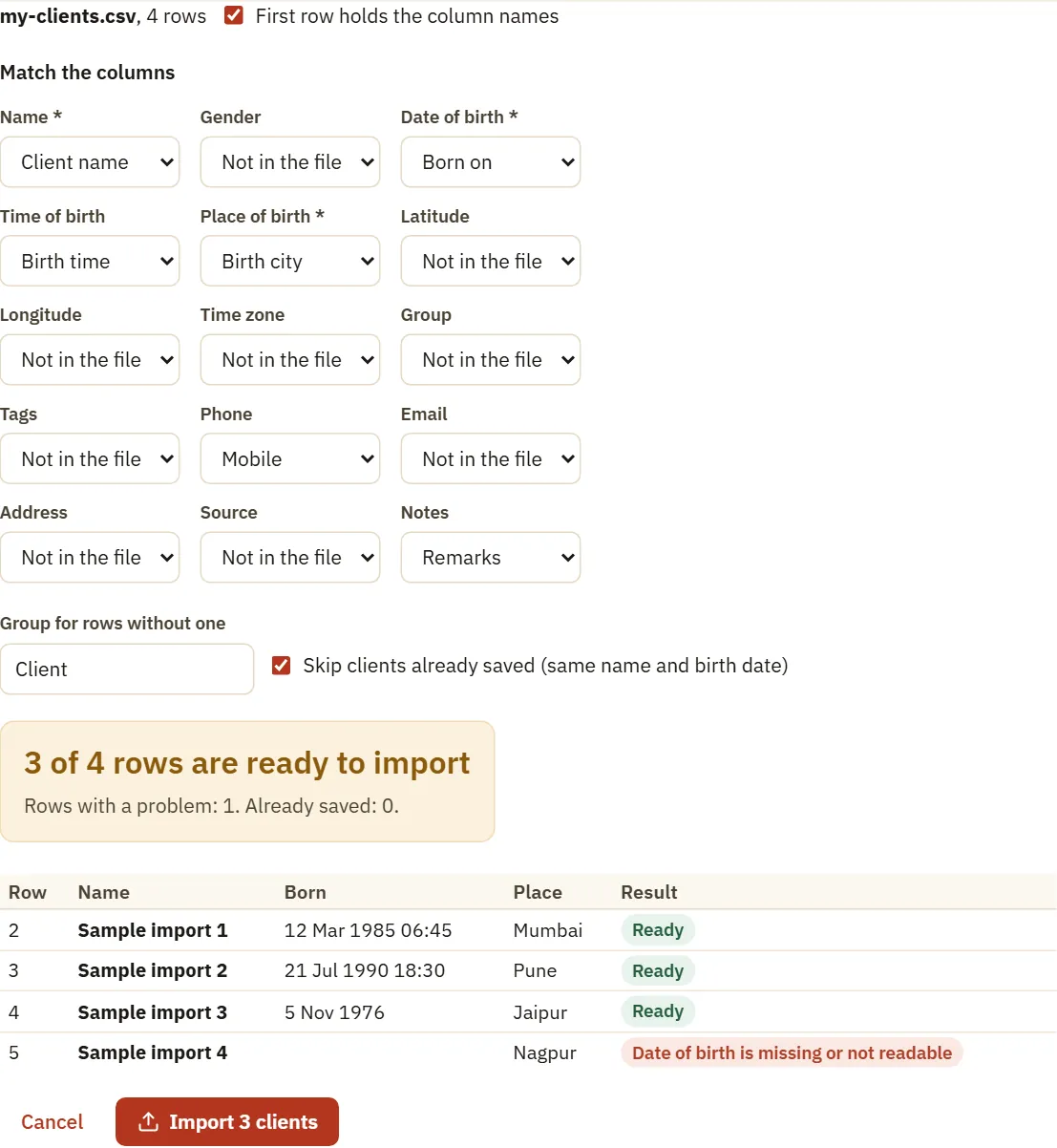
Importing a CSV file
Match each column to a client field, then see which rows are ready and which need a fix before anything is added.
How it fits a working day
- Open the Clients page in the morning and read the call back list.
- When a client comes, search the name and read the last sitting before you start.
- Open the kundli from the client file and do the reading.
- Add a sitting with what they asked, your advice, the remedies and the next date.
- Make the report or the remedies sheet from that sitting, and save the PDF.
Method and sources
Everything here is your own record, so nothing is calculated except the chart events on the call back list. Those come from the same dasha and Sade Sati work as the kundli pages, run across every saved chart.
- Client records are kept in this browser on your own device.
- Dasha changes and Sade Sati use the same chart calculations as the kundli pages.
What it does not do
- Records are not copied between your devices by themselves. A client saved on your phone will not appear on your laptop until you move a backup file across.
- If you clear this browser's data before taking a backup, the records on that device go with it. Back up to a file often. The app reminds you when you set it to.
- It does not send anything to clients for you. In the browser, save the PDF and send it yourself from your mail or WhatsApp.
- One PDF at a time. Saving a separate PDF for each of several clients in one go does not work in the browser.
Questions
Where are my client records stored?
On your own device, in the browser you use for the tool. They are not on our server. This is why a backup file matters.
Can I use the same clients on my phone and my laptop?
The account works on up to 3 devices, but the records stay on the device where you saved them. To move them, make a backup file on one device and restore it on the other.
My clients are in Excel. How do I bring them in?
Save the sheet as a CSV file and choose it under Settings, Clients and data. Match the columns, see which rows are ready, then import. Each person becomes a saved client with a chart.
What if some rows have no birth time?
A missing time does not stop the row. A date that cannot be read, or a place that cannot be found, does, and the row is shown with the reason so you can fix it.
Can I see who owes a fee?
Yes, if you note fees. The Sittings page then shows a fee column, a Not paid filter and the total received for what is on screen. If you never note a fee, none of this appears.
How do the remedies I give reach the report?
Write them in the sitting, one on each line. The remedies section also offers ready lines for that chart. They print near the end of the report and on the one-page remedies sheet.
Have another question?